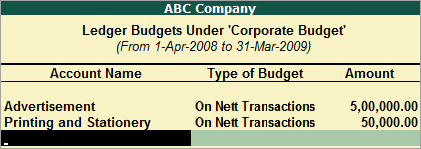
The main purpose of budgeting is to control the expenditure. This is possible by creating budgets and comparing the budged figures against the actual figures. You can generate report based on view the variances or differences between the actual and budgeted figures.
Tally allows you to create multiple budgets. There could be budgets for specific purposes, e.g. for marketing
Budget Activation -> F11-> Accounting features
Step 1
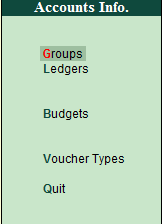
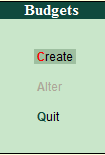
Gateway of tally -> Accounts info -> Budget -> Create
Types of Budget:
Under the types of budget a pop-up of two different kinds of budget appear, namely as follows.
On Closing Balance:
This is used for comparing the closing balance figures in the final statement.
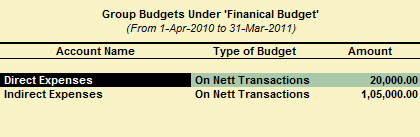
On Nett Transaction:
This is used for comparing transactions against budget.
How to display budget variances of budget?
Go to trial balance -> Then Alt + F2 change the period of budget -> Then Click F4 -> Select the group -> Then Alt + C -> Alt + B Budget variance.
A budget is a plan prepared for the flow of funds in an
organisation. It contains financial guidelines for the future plan of
action for a selected period of time. A budget helps to refine goals and
use funds efficiently. It provides accurate information for evaluation
of financial activities, aids in decision making and provides a reference
for future planning. You can modify a budget using the alter option. You
can also delete a budget.
Multiple budgets can be created for specific purposes
in Tally.ERP 9. Budgets for Banks, Head offices, Departmental budgets
like Marketing Budgets, Finance Budgets, and so on, can also be created.
The Budgeted figures in Tally.ERP 9 can be compared with Actual figures
and variance report can be generated.
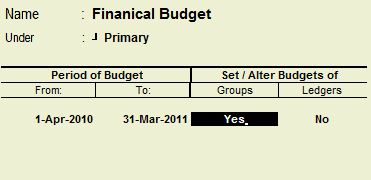
In Tally.ERP 9, you can create a budget for groups,
ledger accounts, and cost centres.
1.
Go to
Gateway of Tally
>
Accounts
Info.
>
Budgets
>
Create
.
2.
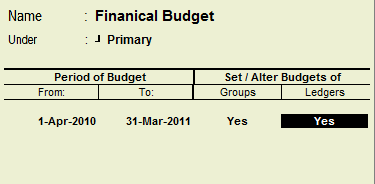
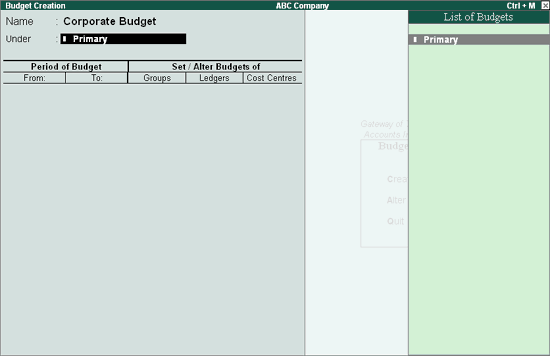
Enter
a
Name
for your budget in the
Budget
Creation
screen.
3.
Select
from the List of Budgets for Under field. You can have a hierarchical
setup for budgets. In the List of Budgets, Primary is at the top of the
hierarchy and you can create more primary budgets. Sub-budgets can be
created under Primary budgets.
4.
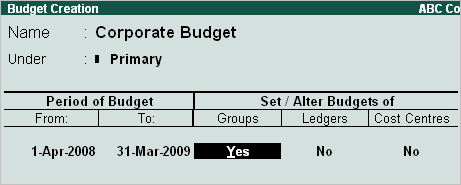
Enter
the period of the budget in the
From
and
To
fields. The period entered can be a month,
a year or any other period.
5.
In
Set/Alter Budgets of
, select
o
Groups
- To create a budget for a Group of ledger accounts.
o
Ledgers
- To create a budget for Ledgers.
o
Cost
Centres
- To create a budget for Cost Centres.
6.
Press
Ctrl+A
to accept
.
Alter a Budget
1.
Go to
Gateway of Tally
>
Accounts
Info
>
Budgets
>
Alter.
2.
Modify
the fields as required,
i
n
the
Budget Alteration
screen.
3.
Change
the period or change budgets of
Groups
,
Ledgers
, and
Cost
Centres
.
Note:
By default,
Set/Alter Budgets
is set to
No
.
Set
this option to
Yes
to
alter
.
Delete a Budget
1.
Go to
Gateway of Tally
>
Accounts Info
>
Budgets
>
Alter
.
2.
Press
Alt+D
to
delete.
Create Budgets for Ledgers
On
enabling budgets
,
the option to create Budgets is available in the
Accounts
Info.
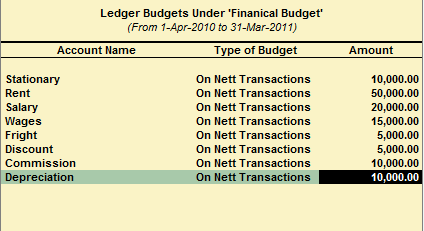
menu. Budgets can be created for specific ledger accounts
created.
1.
Go to
Gateway of Tally
>
Accounts Info.
>
Budgets
>
Create
.
2.
In the
Budget Creation
screen, enter a
n
ame
for your budget.
3.
In the
Under
field, select the required
budget from the
List of Budgets
.
By default,
Primary
is selected
from the
List of Budgets
. Sub-budgets
can be created under primary budgets.
4.
Enter
the period of the budget in the
From
and
To
fields.
5.
In
Set/Alter Budgets of
, enter
Y
in the
Ledgers
field to view the
Ledger Budget
screen.
6.
Press
Space bar
to open
List
of Ledgers
.
7.
Select
the required ledger.
8.
Select
the required
Type of Budget
.
Note:
Select On
Nett Transactions to monitor the transaction amounts and not the balances.
Nett is net of debits and credits for the specified period. Nett transactions
Budgets specified for a period automatically gets apportioned over the
period. i.e., When On Nett transactions Budgets are defined, the debit
amount for the specified period after reducing the credits for the same
period is considered without taking into account opening and closing balances.
For example to compare transactions against budgets, especially revenue
income and expenses On Nett Transactions can be selected.
Select On Closing Balance to monitor the balances
of the Accounts and the not the transactions. i.e., each month will have
the same budget value except that the actual Opening Balance is also taken
into account. Budgets on Closing balances can be set for Bank Account
Ledgers, Debtors Ledger balances and so on. For example to compare closing
balance figures in final statements, especially Balance Sheet items like
assets and liabilities, select Closing Balances.