A cost Centre is units of an organization to which transaction can be allocated. Cost Centre are the most flexible tools for management information system, which allows a analysis of financial information.
How to Activate Cost Centre and Cost Category
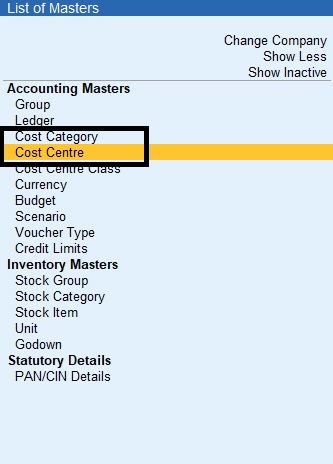
Gateway of Tally->Masters->Create->Cost Category (or) Cost Centre Gateway of Tally->Masters->Create->Show More->Cost Category (or) Cost Centre
Cost Category
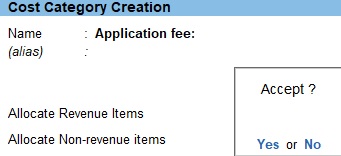
1.Gateway of Tally->Masters->Create->Cost Category 2.Enter the name 3.Set the option Allocate Revenue Items toYesto allocate all sales, purchase, expanses and income->related transaction to cost Centres created under this cost category 4.Set the option Allocate No-Revenue Items to Yes to allocate transaction related to capital account and other non-revenue accounts to cost Centres created under this cost category
Cost Centre
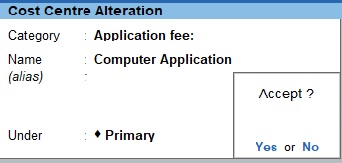
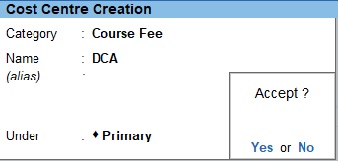
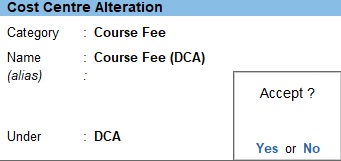
1.Gateway of Tally->Masters->Create->Cost Centre 2.Select the Cost Category 3.Enter name 4.Select the Cost Centre Under which the Cost Centre has to be grouped 5.Enter the Cost Centre
1.Gateway of Tally->Masters->Create->Cost Centre 2.Select the Cost Category 3.Enter name 4.Select the Cost Centre Under which the Cost Centre has to be grouped 5.Enter the Cost Centre
1.Gateway of Tally->Masters->Create->Cost Centre 2.Select the Cost Category 3.Enter name 4.Select the Cost Centre Under which the Cost Centre has to be grouped 5.Enter the Cost Centre
Transaction
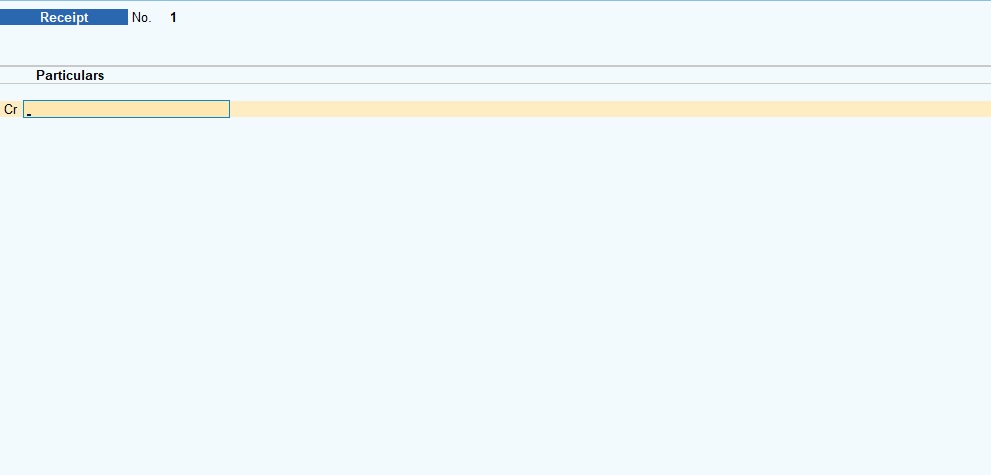
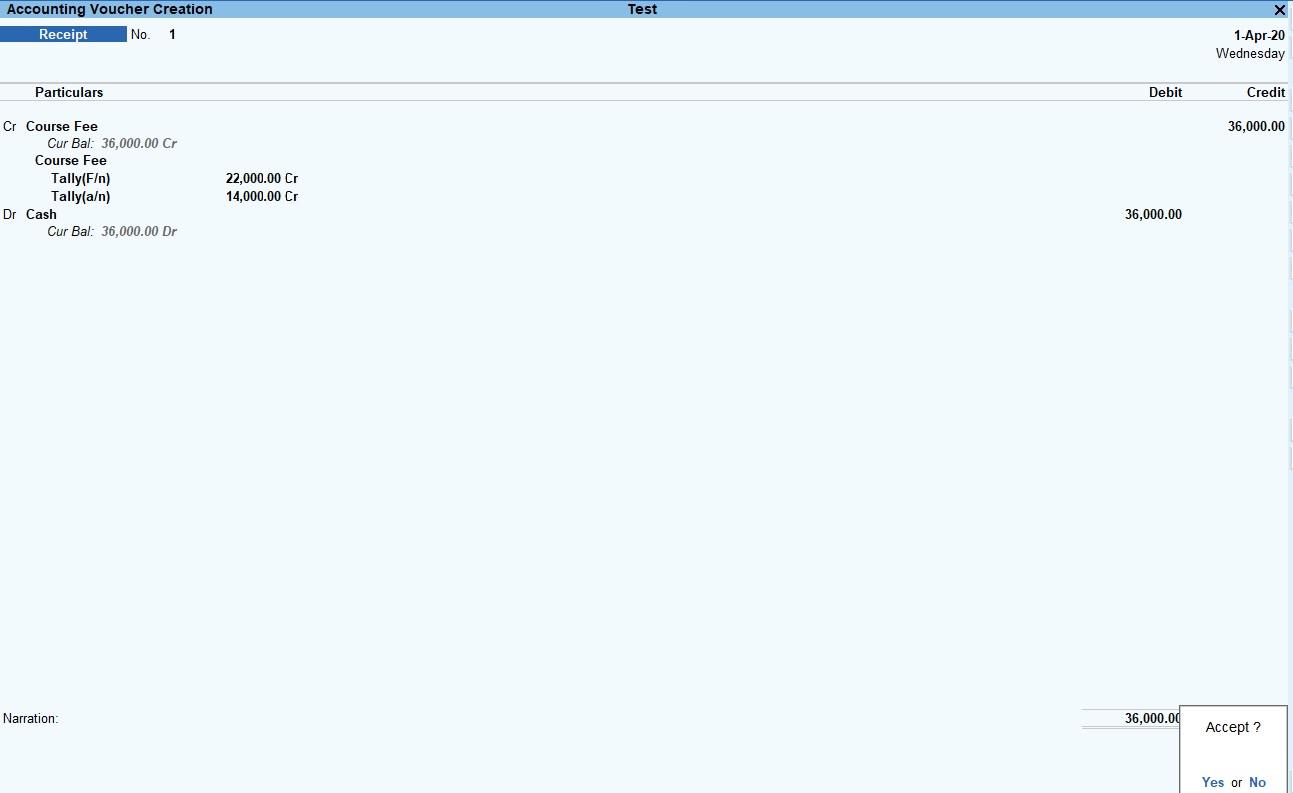
1.Go to Gateway of Tally->Transaction->Vouchers 2.Select Receipt Voucher Click (F6)
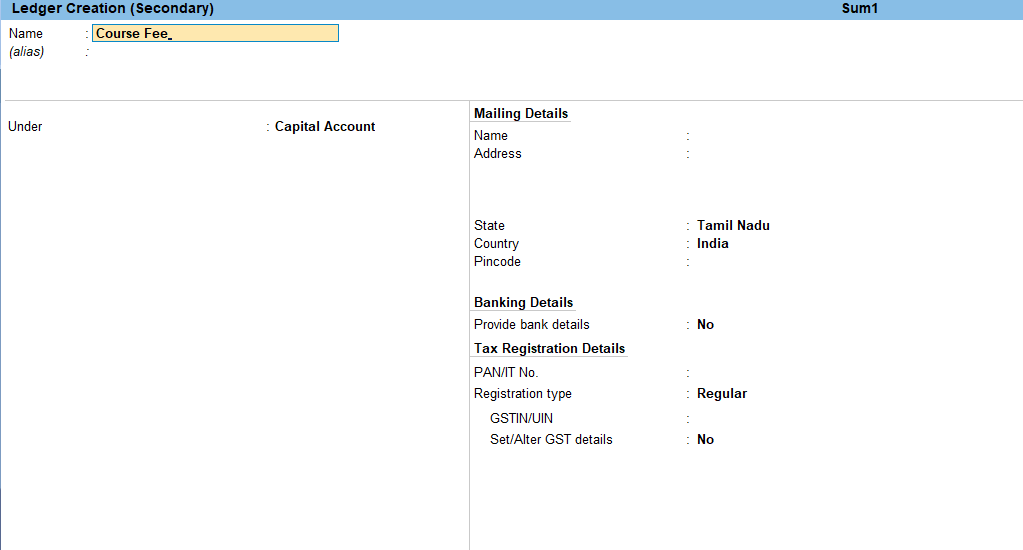
Voucher->Alt+C Click->To Create Ledger->Enter
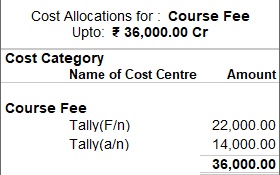
1.The Cost Centre Allocations screen appears as shown:
Cost Centre Sum
The Following Would Be Recording In Journal Using Double Entry System. Do The Posting Process from Journal Entries and Prepare the Trial Balance, Trading A/C, Profit & Loss A/C and Balance Sheet and cost canter In The Books Of M/S. TUTOR JOES COMPUTER EDUCATION Ltd for the following year 2020 to 2021.
1. Course fee received for tally (f/n) Rs.22000 and tally (a/n) Rs.14000 2. Course fee received for tally (a/n) Rs.30000 and computer application for Rs.5000 by cheque 3. Course fee received for tally (day time) Rs.120000, DCA (w/k) Rs.75000 DTP (Day time) Rs.90000, DIT (Day time) Rs.110000 and summer offer for discount 2% for each course 4. Course fee received for DIT (f/n) Rs.15000 and DIT(day time) Rs.13000 5. Entrance application received Rs.10000 6. Course fee received for DTP (a/n) Rs.36000 and DTP(f/n) Rs.14500 7. Course fee for tally (a/n) refund Rs.5000 8. Course material to tally , DIT, and DTP purchased 50 copies @ Rs.5000, Rs.3000, Rs.1000 each 9. Amount paid to Ms. Hindustan ltd for Rs.75000 part settlement 10. Course fee for DIT(f/n) refund Rs.15000 and DCA (a/n) Rs.5000 11. Depreciation of furniture and fittings @ 10% 12. Computer stolen @ Rs.10000 13. Interest received from bank balance Rs.5000
Purchase Order Processing is the process of placing orders with suppliers for a purchase to be made from them. Usually, companies need to track the Order details for Sales and Purchases as this significantly helps in planning the production process accordingly.
Purchase Order is an order placed by a business entity with a supplier for the delivery of specified goods at a given price and at a predetermined time.
When the order is placed with the suppliers for the supply of goods, the Items, quantities, date of receipt etc., details are given with the Purchase Order Number. Later, when these goods are received, the Purchase Order is tracked for the Order Details either in the receipt note or in the purchase Invoice.
How to enable purchase order in tally?
Tally Prime Purchase order
Gateway of tally —–> Vouchers —–> Press F10 (other Voucher) —–> From list of Voucher type ——> Show Inactive ——> Select purchase Order
For tally erp 9 user’s
Gateway of tally —–> Press F11 (Features) —–> Inventory features
Set the following options to ‘Yes’
Allow Purchase Order Processing –Yes
Use Debit /Credit Notes –Yes
Use Invoice mode for Debit Notes –Yes
Use Tracking Numbers (Delivery / Receipt Notes) –Yes
Use Rejection Inward /Outward Notes –Yes
Step For Creating a Purchase Order: –
Voucher Types Shortcuts
Purchase Order Alt + F4
Receipt Note Alt + F9
Rejection Out Note Alt + F6
Purchase Voucher F9
Payment Voucher F5
Rejection Out Note Alt + F6
Debit Note Ctrl + F9
Purchase Order
How to Activate Purchase order in tally prime?
Gateway of tally —–> Vouchers ——> Press F10 (Other voucher) —–> Show Inactive ——> Select Purchase order —–> Press Enter button ——> Activate now ? ——> Yes
On 02/04/2022, Company placed a purchase order to Samarth Stationery order no. PO/SS/001 to Deliver the following goods to our Bandra Godown.
Stock item Quantity Rate
Plastic Ruler 200 nos 15.00
Steel Ruler 450 nos 20.00
Natraj Pencil 1000 nos 10.00
Purchase order
Now View Report,
Gateway of tally—–> Display—–> Statement of inventory —–> Purchase Order outstanding —–> All orders
Display a list of Purchase Orders with outstanding goods receipts (goods still be delivered) or invoice receipts (invoices to be paid).
This list is to be reviewed to determine if the purchase order item(s) should remain active or if it should be cancelled/finalized.
Gateway of tally—–> Display—–> Inventory Books —–> Purchase Order Books
Display a list of Purchase Orders with outstanding goods receipts with each month wise
Here we can know how many orders have been given to each month
Receipt Note Voucher
How to Activate Receipt Note in tally prime?
Gateway of tally —–> Vouchers ——> Press F10 (Other voucher) —–> Show Inactive ——> Select Receipt note—–> Press Enter button ——> Activate now ? ——> Yes
To activate order number Press F12 (Configure)
Provide Supplier Details —–> Yes
Provide Receipt, order and Import details —–> Yes
On 01/05/2020, The authorized person of Company at Bandra warehouses receives the delivery of following items from Samarth Stationery against the order no. (Reference no.) PO/SS/001 and tracking no. is RN/PO/SS/001.
Stock item Quantity Rate
Plastic Ruler 200 nos 15.00
Steel Ruler 450 nos 20.00
Natraj Pencil 1000 nos 10.00
Receipt Note
Now View Report,
Gateway of tally—–> Display—–> Statement of inventory —–> Purchase Order outstanding —–> All orders
Display a list of Purchase Orders with outstanding goods receipts (goods still be delivered)
This list is to be reviewed to determine if the purchase order item(s) should remain active or if it should be cancelled/finalized.
Gateway of tally—–> Display—–> Statement of inventory —–> Purchase Bills Pending
Display a list of Purchase Orders with outstanding goods invoice receipts (invoices to be paid).
Rejection Out Note
How to Activate Rejection Out Note in tally prime?
Gateway of tally —–> Vouchers ——> Press F10 (Other voucher) —–> Show Inactive ——> Select Rejection out Note —–> Press Enter button ——> Activate now ? ——> Yes
On 02/05/2020, The authorized person of Company at Bandra warehouses rejects the delivery of following items due to damage to Samarth Stationery against the order no. (Reference no.) PO/SS/001 and tracking no. is RN/PO/SS/001.
Stock item Quantity Rate
Plastic Ruler 10 nos 15.00
Steel Ruler 20 nos 20.00
Natraj Pencil 40 nos 10.00
Rejection Out note
Now View Report,
Gateway of tally—–> Display—–> Statement of inventory —–> Purchase Order outstanding —–> All orders
Display a list of Purchase Orders with outstanding goods receipts (goods still be delivered)
This list is to be reviewed to determine if the purchase order item(s) should remain active or if it should be cancelled/finalized.
Gateway of tally—–> Display—–> Statement of inventory —–> Purchase Bills Pending
Display a list of Purchase Orders with outstanding goods invoice receipts (invoices to be paid).
Purchase Voucher
On 01/06/2020, The authorized person of Company at Bandra warehouses received a bill against the order no. (supplier invoice no.) P/SS/001 and tracking no. is RN/PO/SS/001 from Samarth Stationery.
Stock item Quantity Rate
Plastic Ruler 190 nos 15.00
Steel Ruler 430 nos 20.00
Natraj Pencil 960 nos 10.00
Purchase Voucher
Now View Report,
Gateway of tally—–> Display—–> Statement of Accounts —–> Outstanding —–> Payable
Payment Voucher
On 02/06/2020, The authorized person of Company at Bandra warehouses Clears all dues of Samarth Stationery against bill no. P/SS/001 by Cash.
Payment Voucher
Rejection Out Note
On 01/07/2020, The authorized person of Company at Bandra warehouses rejects the delivery of following items due to warranty to Samarth Stationery against the order no. (Reference no.) PO/SS/001 and tracking no. is RN/PO/SS/002.
Stock item Quantity Rate
Plastic Ruler 5 nos 15.00
Steel Ruler 10 nos 20.00
Natraj Pencil 12 nos 10.00
Rejection Out
Now View Report,
Gateway of tally—–> Display—–> Statement of inventory —–> Purchase Order outstanding —–> All orders
Display a list of Purchase Orders with outstanding goods receipts (goods still be delivered)
This list is to be reviewed to determine if the purchase order item(s) should remain active or if it should be cancelled/finalized.
Debit Note
On 02/07/2020, The authorized person of Company at Bandra warehouses make debit note of following items from Samarth Stationery on order no. (New Ref) PO/SS/001 and tracking no. is RN/PO/SS/002.